CAST is restricted to Windows 10 or later.
or
Download and run the installer.
Contact the CASTSOFT administrator to pay for the licence(s).
Fully featured demo licences are available for a period of 3 months.
The administrator will email you the licence code(s).
Installation Guide
Run the setup and follow the instructions – then run the program.
You will see the Licence options form:

Select “Activate a licence online (code required)” – this requires access to the internet.
On the next form, copy the licence code from the email into the “Licence ID:” box.

Fill in the Company Name and check the Domain name, Computer name and User name are correct.
Note: The Domain name box should display the actual name of your network domain.
Fill in your email address and then click “Activate”
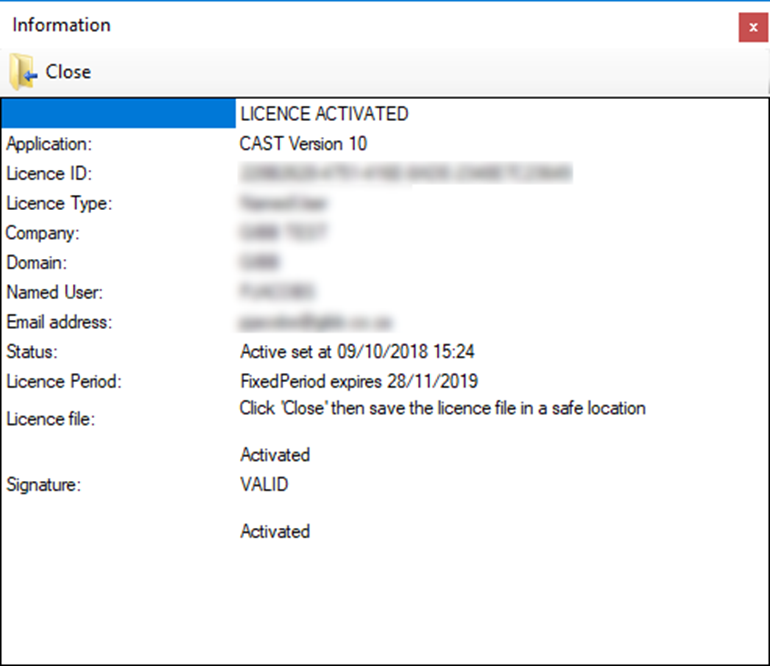
You will then be prompted to save the licence file – We suggest that you save the file on your local disk and also back it up to a safe location.
Contact us if this process doesn’t work and we will arrange to activate the licence by email.
Close the Licence options form and you can use CAST10.
You should then configure the locations of some of the support files: Click on the menu Tools > File Locations:
You will see the following setup form:
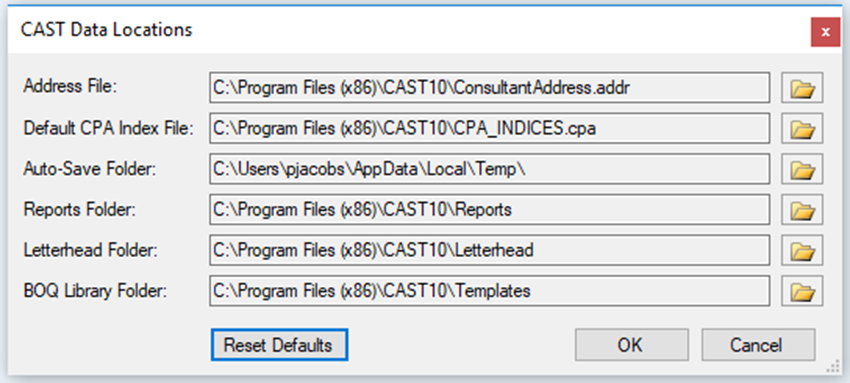
Select the Address file
e.g. C:\Program Files (x86)\CAST10\Gibb_Offices.addr
Some of the default locations are in the program folder.
In a corporate business environment, users commonly do not have write access to the program folder – and users may not be able to edit the files and save their changes.
In this situation the files and folders can copied to a different folder where write permissions are not restricted (C:\CAST_data in the example below) and the file locations updated in CAST.
The default location for auto-save files is the user’s system Temp folder:
e.g. C:\Users\<username>\AppData\Local\Temp
This folder is sometimes difficult to find so it is recommended that a top-level folder is selected instead :
e.g. C:\AutoSave (in the example above).
CAST10 checks for updates once every 7 days – you can manually check for updates from the Help menu. If an update is available, you can download it and you will have the option of running the update when CAST exits.
There is a lot of detail in the CAST Help file.